Why File Names in a ZIP Come Out Garbled, and How to Fix Them
Unzip a file from a Japanese colleague and the names read 縺ッ縺セ縺 — or a ZIP made on a Mac garbles on Windows. ZIP never recorded the encoding of names. What each system writes, which tools guess right, and how to re-save the archive so it opens anywhere.
Fix the garbled ZIP right now
Drop the ZIP: the name encoding is detected and the files are listed with their real names. Save them as they are, or re-save the whole archive as a ZIP that opens correctly anywhere.
The file is processed in your browser and sent nowhere.
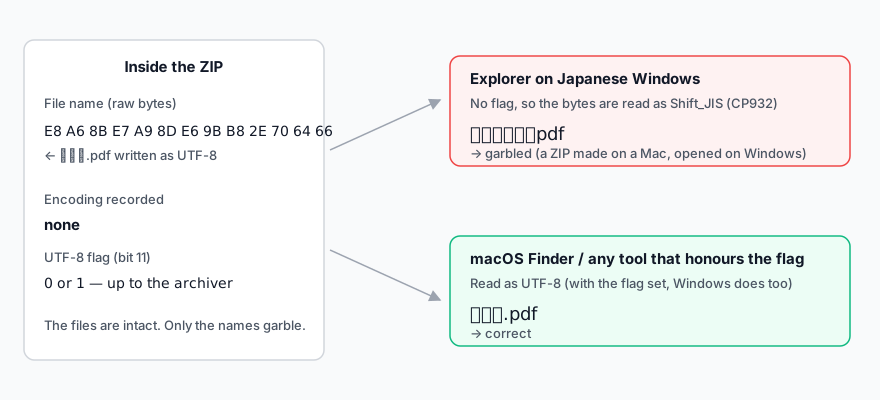
You unzip an archive from a Japanese partner and the file names read "縺ッ縺セ縺・pdf". Or a colleague on Windows says the ZIP you made on your Mac came out as "1ï¼.xlsx". The files themselves are fine. Only the names are garbled, and the cause is that the ZIP format never records which encoding the names were written in. This article explains that in one diagram, shows how to tell where an archive came from by the way it garbles, and gives a fix for each situation.
Why: ZIP does not record the encoding of names
Inside a ZIP, a file name is just a run of bytes. The format dates from 1989, when "whatever this PC uses" was the only encoding anyone considered, so there is no field saying which encoding the name is in. A 2006 revision of the specification added a flag (general-purpose bit 11) meaning "this name is UTF-8", but setting it is up to the archiver, and archives without it are still produced every day.
A name without the flag is read however the opening program sees fit. Japanese Windows reads it as Shift_JIS (CP932, strictly); macOS reads it as UTF-8. When the writer and the reader assume different things, the name garbles.
Reading the garble: where the ZIP was made
- Odd kanji and katakana such as 縺ッ縺セ縺, 繧, 郢: UTF-8 names read as Shift_JIS. This is a ZIP made on a Mac, on Linux or with a modern tool, opened with Explorer on Japanese Windows or an older Japanese archiver. A ZIP from a Mac usually also contains a "__MACOSX" folder, another giveaway.
- Western symbols such as ï¼‘ï¼ or é: UTF-8 names read as Windows-1252. This is what English Windows, or any system not set to Japanese, shows for the same archive.
- Garbled or "cannot expand" on a Mac: Shift_JIS names read as UTF-8. This is a ZIP made on Japanese Windows (Explorer up to Windows 10, Lhaplus and the like), opened on a Mac. Archive Utility tries to guess the encoding and sometimes guesses wrong.
In every case the original bytes of the name are still in the archive. Read them with the right assumption and the names come back — the same reason a garbled CSV is not actually damaged.
Fix 1: pick the encoding in your browser
The LZH / ZIP extractor on this site tries every unflagged name as Shift_JIS, UTF-8, EUC-JP, GBK, Big5, EUC-KR and Windows-1252, and keeps the reading that looks most like real text. If it guesses wrong, switch "File name encoding" and the names are re-read.
- Drop the ZIP. The file list appears immediately.
- Check that the names read correctly; change the encoding if not.
- Save the files you need, or press "Save all as ZIP". The new ZIP has UTF-8 names with the UTF-8 flag set, so it opens correctly on Windows and macOS alike.
Useful on a locked-down work PC, on an iPad, or when you want to fix an archive before forwarding it. Nothing is uploaded. Password-protected ZIPs work the same way once you enter the password. The re-saved ZIP has no password, though: before sending it on, add the extracted files to the ZIP password tool and make a new one.
Fix 2: Windows tools that detect the encoding
Explorer's "Extract All" reads unflagged names in the system code page and cannot be told otherwise, so it cannot fix a Mac-made ZIP. Use an archiver that detects the encoding.
- CubeICE (free): written specifically for this problem; it auto-detects the encoding of names.
- Explzh (free for personal use): honours the UTF-8 flag and detects unflagged names; the encoding can also be set by hand.
- 7-Zip (free): opens flagged UTF-8 ZIPs correctly. Unflagged UTF-8 names are read in the system code page, so a Mac-made ZIP may still garble.
Lhaplus, the archiver many Japanese offices still have, cannot handle UTF-8 names in older versions. If Mac-made ZIPs keep garbling, switching to one of the tools above is the quickest fix.
Fix 3: macOS and Linux
- macOS: when Archive Utility garbles or refuses the file, install The Unarchiver (App Store, free) or Keka. Both detect Shift_JIS names; The Unarchiver also lets you set a fallback encoding in its preferences.
- Linux:
unzip -O cp932 file.zipextracts with the encoding given (the unzip in Debian and Ubuntu supports -O).unar, the command-line version of The Unarchiver, detects the encoding itself.
Making a ZIP that does not garble
To spare the recipient all of this, create the ZIP with the UTF-8 flag set. Current Windows, macOS and Linux all honour it.
- Windows: in 7-Zip's Add to Archive dialog, put
cu=onin the Parameters field to write UTF-8 names. Explzh and CubeICE have a UTF-8 setting too. Explorer's own "Compress" varies by version (CP932 up to Windows 10; newer Windows 11 builds are reported to write UTF-8), so it cannot be relied on for either recipient. - macOS: Finder's "Compress" writes UTF-8 names without the flag, which is exactly what garbles on Japanese Windows. Use Keka, or in Terminal run
zip -r archive.zip folder, which sets the flag. - Anywhere: "Save all as ZIP" in this site's extractor rewrites any archive with flagged UTF-8 names.
- With a password: the ZIP password tool writes non-ASCII names with the UTF-8 flag (checked to open with intact Japanese names in Windows 11 File Explorer).
- Most reliable of all: use ASCII file names. Flag or no flag, they read the same everywhere.
Summary
- ZIP records no encoding for file names. Without the UTF-8 flag (bit 11), the opening program reads the bytes however it likes.
- 縺ッ縺セ縺 is a Mac-made ZIP opened on Japanese Windows; a ZIP that garbles on a Mac was made on Windows. The files inside are fine.
- Fix it by picking the encoding in your browser, with CubeICE or Explzh on Windows, or The Unarchiver on a Mac.
- When sending, set the UTF-8 flag (7-Zip's cu=on, the zip command on macOS) or use ASCII names.
Frequently asked questions
Are the file contents garbled too?
Can you fix a password-protected ZIP?
Where is the UTF-8 setting in 7-Zip?
cu=on into the Parameters field of the Add to Archive dialog. It is a free-text field rather than a checkbox, which makes it easy to miss. About the author
Ren
Developer, OpenedFile
I build and maintain OpenedFile on my own. It started when a winmail.dat attachment landed in my inbox and nothing would open it — and every online converter I found wanted me to upload the file to their server first. So I wrote a TNEF parser from scratch instead, and every tool here has run entirely in the browser ever since.
More about OpenedFile