Drop VCF/vCard files here
or click to select files
Supports .vcf and .vcard files.
How to Convert VCF/vCard to CSV
VCF (Virtual Contact File), also known as vCard, is the standard file format for storing contact information. It's used by virtually every contact management system, including Apple Contacts, Google Contacts, Microsoft Outlook, and smartphone address books. A single VCF file can contain one contact or hundreds of contacts, each with information like name, email addresses, phone numbers, physical addresses, and organization details.
While VCF files are great for transferring contacts between devices and applications, they aren't easy to open or edit directly. Our VCF to CSV converter parses your contact file entirely in your browser and displays all contacts in a clean, readable table. You can then export the data as a CSV file that opens perfectly in Microsoft Excel, Google Sheets, LibreOffice Calc, and other spreadsheet applications. The CSV is exported with a UTF-8 BOM (Byte Order Mark) to ensure special characters and international names display correctly in Excel.
This tool is ideal for migrating contacts between platforms, creating mailing lists, auditing contact data, or simply viewing the contents of a VCF file without importing it into your address book.
Select Your VCF File
Drag and drop your .vcf or .vcard file onto the upload area, or click to browse and select it from your device. The tool supports files containing single or multiple contacts.
View Your Contacts
All contacts in the file are parsed and displayed in a clean table showing names, email addresses, phone numbers, addresses, and organization names. You can review the data before exporting.
Download as CSV
Click the 'Download CSV' button to export all contacts as a CSV file. The file includes a UTF-8 BOM for perfect Excel compatibility, ensuring special characters and international names display correctly.
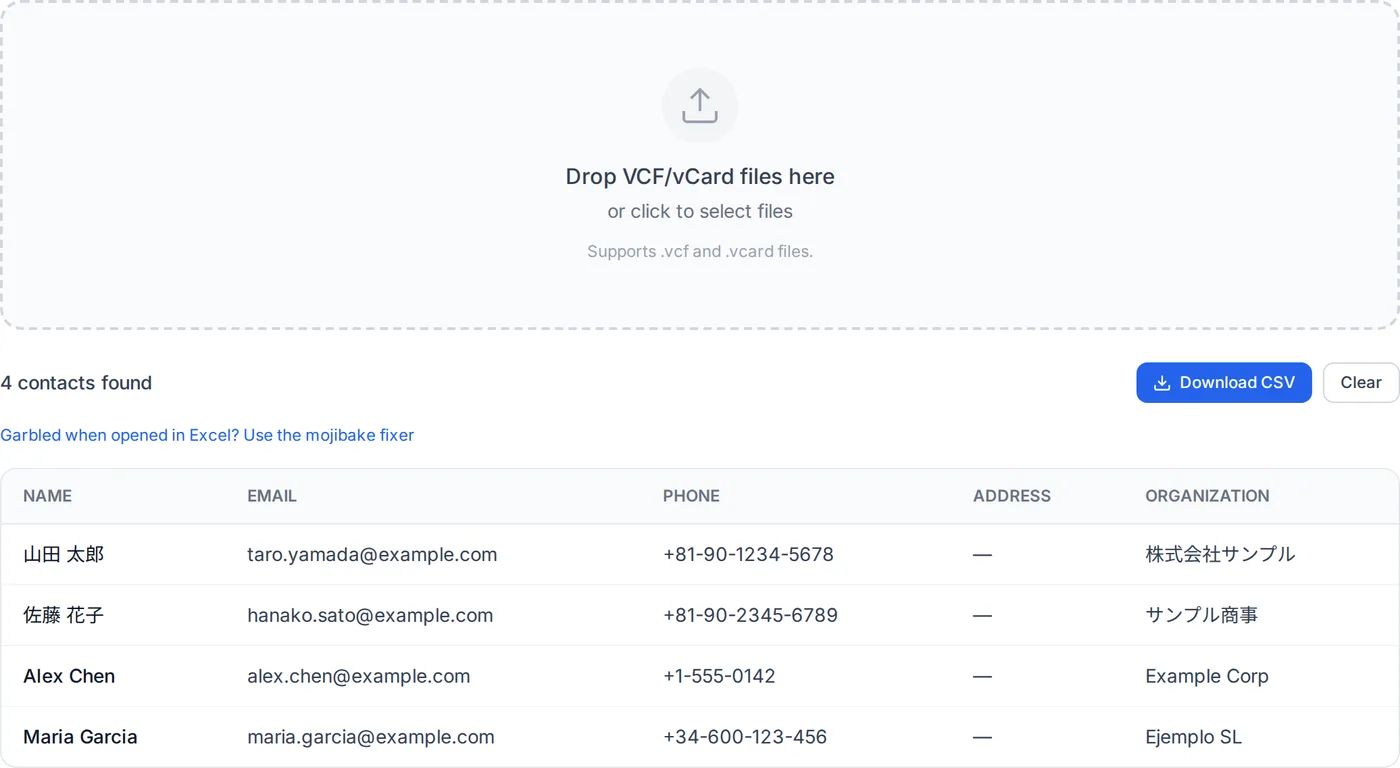
The conversion is instant for most VCF files, even those containing hundreds of contacts. Since all processing happens locally in your browser, your contact data — including names, phone numbers, and email addresses — never leaves your device.
How this VCF converter works
A .vcf file is plain text, but its line-wrapping and parameter rules trip up most naive converters — which is why exports so often arrive with truncated names or half a phone number. This parser handles those rules in the browser.
- Line unfolding (RFC 6350)
- vCard wraps long values across lines, continuing them with a leading space or tab. Those continuations are rejoined before anything is parsed, so a long address or organisation name survives instead of being cut at the wrap point.
- Android exports: quoted-printable and CHARSET
- Android's built-in exporter writes vCard 2.1 and encodes every non-ASCII value — a Chinese or Japanese name, an address — as quoted-printable (N;CHARSET=UTF-8;ENCODING=QUOTED-PRINTABLE:=E5=BC=A0;=E4=B8=89), breaking long values across lines with a trailing “=”. Those lines are rejoined and each value is decoded with the character set it declares (UTF-8, GBK, GB18030, Shift_JIS and others), so the CSV gets the name, not the codes.
- Parameters are separated from values
- Properties like TEL;TYPE=CELL:090-1234-5678 are split at the first colon and the base property name is read before any parameters, so type annotations never leak into the exported value. A group prefix is set aside the same way: Apple puts one on some entries — a labelled email address or phone number (item1.EMAIL, item2.TEL) and the address (item3.ADR) — and those are read as EMAIL, TEL and ADR rather than skipped.
- Multiple values per contact
- A contact with several email addresses or phone numbers keeps all of them rather than only the first — they are collected and joined in the exported cell.
- Structured fields
- N (family, given, middle, prefix, suffix) and ADR (street, city, region, postal code, country) are component fields. Empty components are dropped and the remainder joined, so you get a readable name and address instead of a row of stray semicolons.
- UTF-8 BOM on the CSV
- The exported CSV starts with a byte-order mark. Without it, Excel on Windows assumes the legacy system codepage and turns Japanese names into mojibake — the single most common complaint about VCF-to-CSV converters.
Where it stops
Embedded contact photos (PHOTO) are not exported, since a CSV cell is the wrong place for binary image data. Custom X- properties added by specific address books are also ignored rather than being guessed at. A value in a legacy character set such as GBK or Shift_JIS is decoded when the file declares it with CHARSET; a file that does not say which character set it uses is read as UTF-8 rather than guessed at, so text in GBK or Shift_JIS in such a file comes out as “�”, with no warning.
Frequently Asked Questions
What is a VCF/vCard file?
Is it safe to convert VCF files with this tool?
Will the CSV file open correctly in Excel?
Can I convert a VCF file with multiple contacts?
How do I export contacts as VCF from my phone?
What information is included in the CSV export?
Does this tool work on mobile devices?
Related articles
What Is a VCF File? vCard Versions, Fields and How to Open One
A .vcf file is a vCard: contact cards written as plain text. What the lines mean, how vCard 2.1, 3.0 and 4.0 differ (character sets, quoted-printable), what Apple, Android and Outlook export, and what to do with the file.
How to Transfer Contacts Between Phones
How to move contacts between iPhone and Android (and between phones of the same kind), using Apple's and Google's own instructions: during the new phone's setup (Move to iOS, Android Switch), by syncing a Google Account or iCloud, or with a VCF file.
How to Convert VCF to CSV for Excel
Convert VCF (vCard) contacts to CSV and open them in Excel. Real conversions of sample files in the iPhone, Android and Google Contacts export formats, what the CSV keeps and drops, keeping the leading zeros on phone numbers, and turning a CSV back into a VCF.