Password-Protect a ZIP File (Free, No Install)
Pick files and choose a password. Works on a work PC where you cannot install software. Encryption happens in your browser; neither the files nor the password are sent anywhere.
Your files stay safe — processed entirely in your browser. Nothing is uploaded.
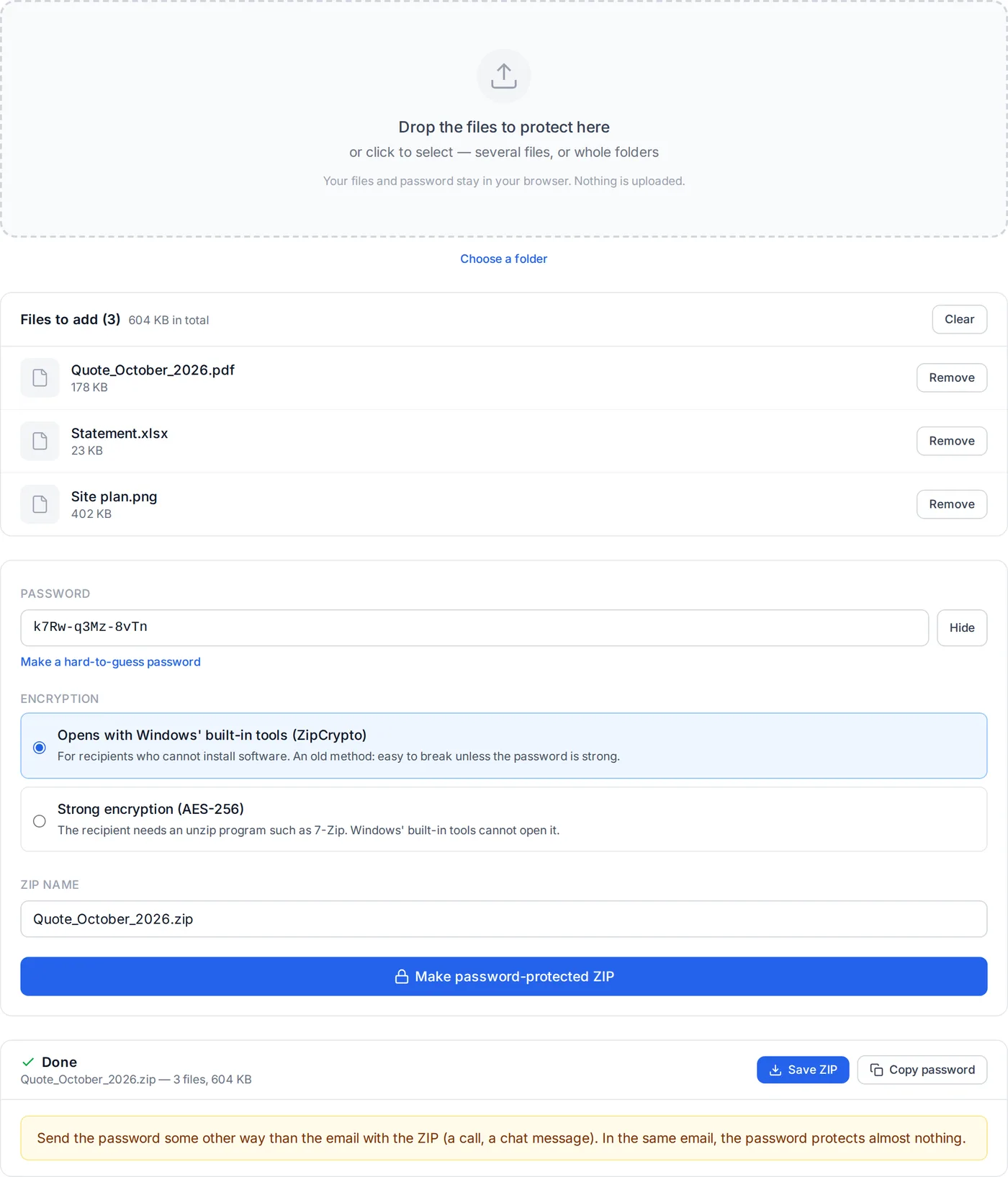
Drop the files to protect here
or click to select several files (for a folder, drop it or use the button below)
Your files and password stay in your browser. Nothing is uploaded.
How to Put a Password on a ZIP File
Windows 11 can make a ZIP from File Explorer, but it cannot put a password on it. Microsoft's own support page says to use other software such as 7-Zip or WinRAR to create or extract encrypted archives. On a work PC where you cannot install anything, that is where it stops.
This tool makes the password-protected ZIP in your browser. Your files are not uploaded: they are compressed and encrypted on your device.
Add the files
Drop the files to protect onto the box above. You can add whole folders, or add more files in several goes.
Choose a password and the encryption
Type your own or press "Make a hard-to-guess password". If the recipient cannot install software, pick the classic method (ZipCrypto); if they have 7-Zip or similar, pick AES-256.
Make it and save it
Press "Make password-protected ZIP", then "Save ZIP" to download it. Send the password to the recipient some other way than the email.
The recipient can also open it with this site's extractor: with the password, either kind of ZIP opens in a browser, with nothing to install. Extract LZH / ZIP / 7z / RAR
How This Tool Works
Compression and encryption use zip.js and run entirely in your browser. It is the same library this site's extractor uses to open password-protected ZIPs.
- The classic method (ZipCrypto)
- The PKZIP 2.0 cipher, which almost every unzip program can read. Its weakness is well known: part of the contents is enough to decrypt the rest without the password (a known-plaintext attack). That is why the tool says it is easy to break.
- AES-256 (WinZip format)
- The AE-2 format defined by WinZip. The key comes from the password through PBKDF2 (HMAC-SHA1, 1,000 rounds). 7-Zip, WinZip, WinRAR and others read it. AE-2 does not store the CRC of the contents, so the CRC cannot be used to guess them either. zip.js license (BSD 3-Clause)
- Opening it on Windows and on a Mac
- Microsoft's support page says Windows 11 (24H2) does not support creating or extracting encrypted archives. Tried in October 2026 with ZIPs made by this tool, Windows 11's File Explorer took the password and extracted the classic method (ZipCrypto), Japanese file names intact; it showed an error for AES-256, which WinRAR extracted. On a Mac, both kinds were extracted once the password was entered. Microsoft support: "Zip and unzip files"
- Generated passwords
- "Make a hard-to-guess password" picks 12 characters from 57 letters and digits, leaving out look-alikes such as 0 and O or 1, l and I, with the browser's cryptographic random numbers (crypto.getRandomValues). That is about 70 bits, grouped in fours so it is easy to read out over the phone.
- File names and dates
- Names with characters beyond plain ASCII are written in UTF-8 with the UTF-8 mark (bit 11 of the general purpose flag). A folder keeps its structure inside the ZIP (empty folders only when the folder is dropped). Characters Windows does not allow in names (\ : * ? " < > |) become _, and .DS_Store, Thumbs.db and desktop.ini inside folders are left out. Each file keeps its own modification date.
What It Does Not Do
File names, sizes and dates are not encrypted: anyone can list them without the password (that is how ZIP works, with either method). More than 1 GB in total is refused. Split ZIPs, ZIP comments and a different password per file are not supported. The password must be plain ASCII. On phones, adding a whole folder may not be possible.
Frequently Asked Questions
Can Windows 11 put a password on a ZIP on its own?
How does the recipient open it?
ZipCrypto or AES-256: which should I choose?
Does the password hide the file names too?
Are my files or my password sent anywhere?
Can I send the password in the same email?
Can the password contain accented or non-Latin characters?
Will file names in other scripts come out right?
Can I add large files?
Related articles
Why a ZIP File Will Not Open, and How to Fix Each Cause
A ZIP that refuses to open has one of six causes: a truncated download, a password, a split archive, garbled names, a file that is not really a ZIP, or an archiver too old for it. How to tell which, and what to do about each.
Why File Names in a ZIP Come Out Garbled, and How to Fix Them
Unzip a file from a Japanese colleague and the names read 縺ッ縺セ縺 — or a ZIP made on a Mac garbles on Windows. ZIP never recorded the encoding of names. What each system writes, which tools guess right, and how to re-save the archive so it opens anywhere.