Drop HEIC/HEIF files here
or click to select files
Supports .heic and .heif files. Multiple files accepted.
How to Convert HEIC to JPG or PNG
HEIC (High Efficiency Image Container) is the default photo format on iPhone 7 and later models, from iOS 11. Apple says it compresses better than JPEG, taking less space at the same image quality. But it is not supported everywhere: Windows PCs, older Android devices, and many web applications and image editors still can't open HEIC files directly.
This tool converts your HEIC and HEIF photos to universally compatible JPG or PNG format right in your browser. The conversion uses WebAssembly-based decoding, so your photos are never uploaded to any server — they stay completely private on your device.
Select Your HEIC Files
Drag and drop your HEIC or HEIF files onto the upload area, or click to browse and select photos from your device. You can convert multiple files at once — perfect for batch-converting an entire photo library.
Choose Your Output Format
Select JPG (default) or PNG as your output format. JPG is recommended for photos since it produces smaller files while maintaining excellent visual quality. PNG is best when you need lossless quality or transparency.
Adjust Quality (JPG only)
When converting to JPG, use the quality slider to find the right balance between file size and image quality. The default setting of 90% preserves nearly all visual detail while keeping file sizes reasonable.
Download Your Photos
Once conversion is complete, download each photo individually or use the "Download All as ZIP" button to get all your converted photos in a single archive — great for transferring a batch of photos.
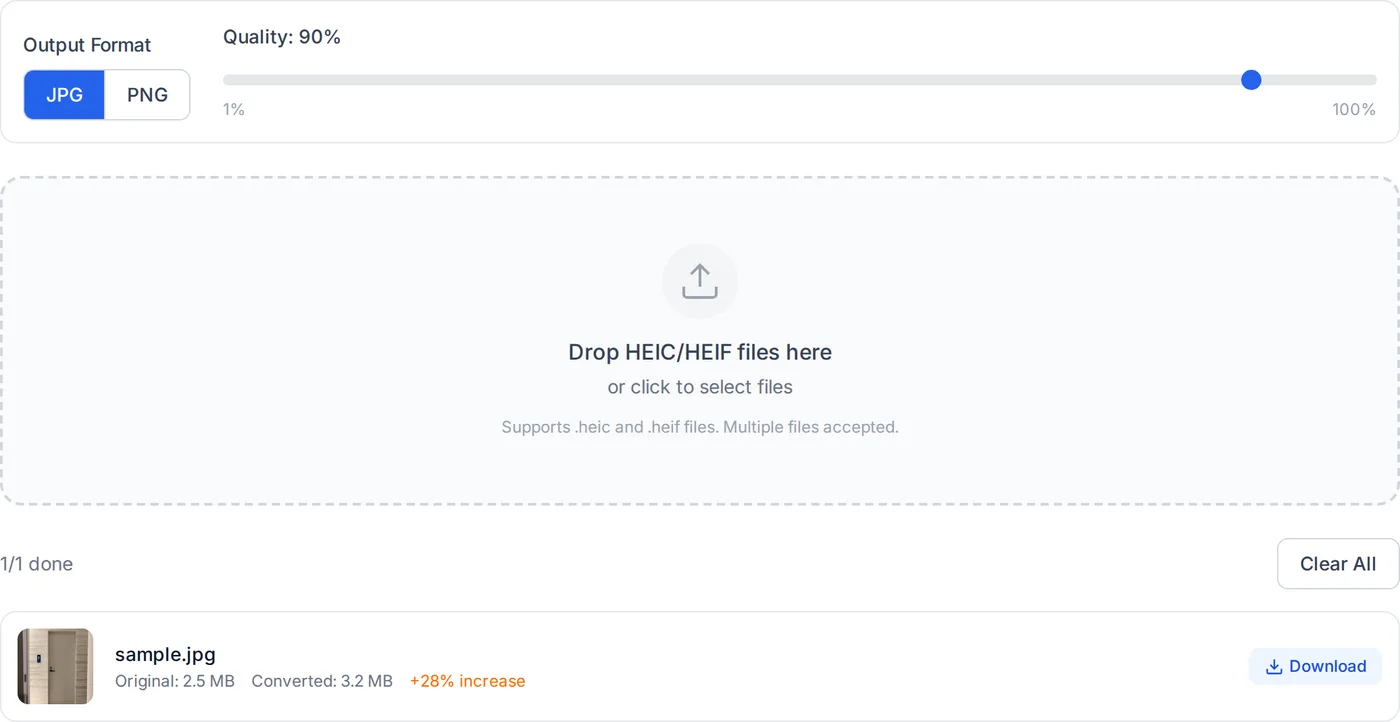
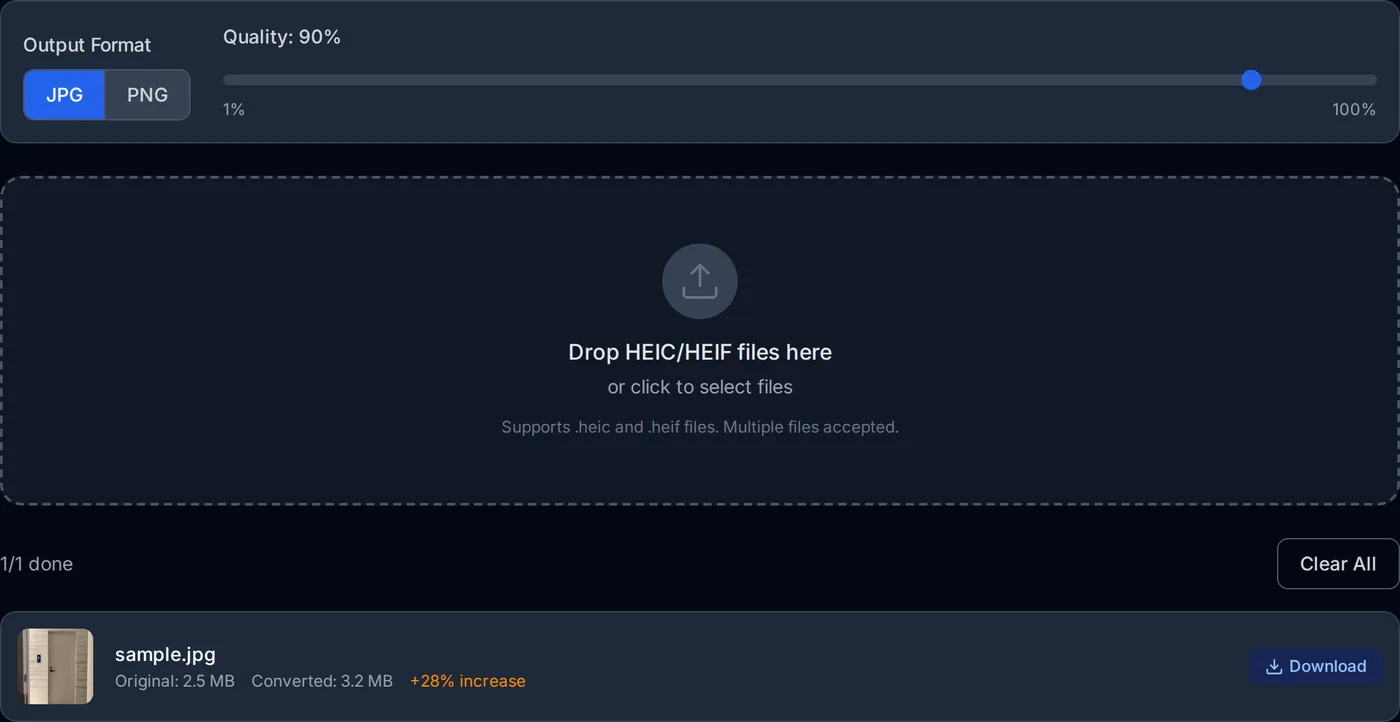
How long a conversion takes depends on the size of the photo and the speed of the device. Converting the photo above (4284×5712, about 24.5 megapixels) on a desktop took about 5 seconds the first time, including loading the decoder, and 1–3 seconds per photo after that. Since everything runs locally in your browser, no bandwidth is used while converting.
How this HEIC converter works
HEIC is HEVC-compressed image data in a HEIF container. No browser exposes a decoder for it outside of Safari, so this tool ships its own decoder compiled to WebAssembly and runs it on your device.
- WebAssembly decoding
- Decoding runs through the heic-to library's WebAssembly build, which is what makes HEVC intra-frame decoding fast enough to be practical in a tab. Pure JavaScript would be much slower on a photo of 20-odd megapixels. heic-to, libheif and libde265: license and copyright notices (GNU LGPL 3.0 or later)
- Loaded only when you convert
- The decoder is a multi-megabyte module, so it is imported dynamically at the moment you drop a file. Simply visiting the page does not download it.
- Format detection
- Files are accepted on a .heic or .heif extension or an image/heic or image/heif MIME type, so photos copied off an iPhone are recognised even when the operating system reports no MIME type at all.
- Quality control
- The quality slider maps to the JPEG encoder's quality parameter. PNG output is lossless, so the slider has no effect there and the file will usually be larger than the HEIC original.
- Batch conversion
- Photos are converted one after another rather than all at once, which keeps peak memory bounded on phones, and the finished set can be downloaded as a single ZIP.
Where it stops
A Live Photo's paired video is not extracted — only the still image is converted. Depth maps and the non-primary images inside a multi-image HEIC are also dropped, and conversion is limited by your device's memory rather than by an upload cap.
Frequently Asked Questions
What is HEIC and why does my iPhone use it?
Is it safe to convert HEIC files with this tool?
Will I lose image quality when converting from HEIC to JPG?
Can I convert HEIC photos from my iPhone on a Windows PC?
How do I stop my iPhone from taking photos in HEIC format?
Can I convert multiple HEIC files at once?
What's the difference between HEIC and HEIF?
Related articles
How to Convert HEIC to JPEG for Free, and Whether You Need Software
Wanting a JPEG out of a HEIC often turns into a hunt for free software that dead-ends. The usual recommendations are only free for personal use, and the built-in Windows route has a paid half. Here is what each option really costs, and how to skip installing anything.
HEIC Won't Open on Windows? Three Ways to View iPhone Photos
iPhone photos (.heic) will not open on Windows because Windows ships without a HEIC decoder. Convert them to JPEG in your browser, add the codec extensions to Windows, or have the iPhone hand over JPEG in the first place — compared.