EML vs MSG: Which to Choose When You Save an Email
EML and MSG compared by what is inside, which apps open them and how each app saves a message — classic Outlook, new Outlook, Outlook on the web, Gmail and Apple Mail — and which to pick when you are not sure.
Just want to open the file you have?
Both EML and MSG files open in this site's viewers. Look inside first, read about the differences later.
Everything happens in your browser; nothing is uploaded.
An EML file and an MSG file each hold one email. What differs is how they are built: EML is the message exactly as it travels between mail servers, while MSG is an Outlook item written out to a file. That difference decides which apps can open them and which format each app saves in.
If the file you have is a .msg, the MSG viewer on this site opens it.
The short answer
- If you can choose, choose EML. In new Outlook and Outlook on the web only MSG needs a Microsoft 365 subscription, and Outlook for Mac could not open MSG before its April 2026 version.
- Classic Outlook for Windows has no EML in its save types, so it saves MSG. Pick the Unicode one.
- If a file you received will not open, this site's EML and MSG viewers show what is inside, in your browser.
What is inside (open them in a text editor)
An EML file is plain text in the format of internet mail (RFC 5322). Open one in Notepad and you see the sender and subject fields. This is the start of the sample EML this site uses:
From: Sample Sender <sender@example.com>
To: Sample Recipient <recipient@example.com>
Subject: =?UTF-8?B?5Zub5Y2K5pyf44Os44Od44O844OI44Gu6YCB5LuY?=
Date: Wed, 25 Feb 2026 10:14:00 +0900
MIME-Version: 1.0
Content-Type: multipart/mixed; boundary="----=_Part_0_1706000000000"
A subject with any non-ASCII characters is written in the =?UTF-8?B?…?= form and cannot be read as it stands. The body and any attachments follow as text, with attachments turned into long runs of letters, digits and symbols.
An MSG file, according to Microsoft's specification ([MS-OXMSG]), is a "compound file": a single file holding a hierarchy of storages and streams, a little like folders and files. The same format stores Outlook appointments, contacts and tasks as well as emails. A text editor shows nothing readable, and the file always starts with these eight bytes:
D0 CF 11 E0 A1 B1 1A E1That is the same container signature as old Word and Excel files (.doc, .xls). The subject and body sit inside the container as properties of the Outlook item.
| EML | MSG | |
|---|---|---|
| Inside | Text in the internet mail format (RFC 5322, MIME) | A compound file holding an Outlook item ([MS-OXMSG]) |
| In Notepad | Sender, recipient and subject fields are visible (non-ASCII parts become runs of symbols) | Unreadable |
| Holds | Emails | Emails, and also appointments, contacts, tasks and more |
| Mostly made by | Gmail, Apple Mail, Outlook for Mac, new Outlook and others | Classic Outlook for Windows |
How each app saves a message
Which file you get depends on the app you save from. This is what each company's documentation says:
| App | Steps | File you get |
|---|---|---|
| Classic Outlook (Windows) | Open the message, then File > Save As and the Save as type list | MSG (Unicode or not), HTML and others. No EML (see below) |
| New Outlook (Windows) | More actions > Save as | EML (going by the title of Microsoft's article; the steps themselves do not name the format) |
| Outlook on the web, Outlook.com | More actions > Download | EML or MSG (which one is not documented) |
| Outlook for Mac | Steps not documented | EML (Microsoft's feature list says "Open and save .eml file") |
| Gmail | Open the email, then More > Download message | EML |
| Apple Mail (Mac) | File > Save As, format Raw Message Source (dragging the message to the desktop does the same) | EML |
Sources: Microsoft's "Save an Outlook message as a .eml file, a PDF file, or as a draft", Gmail Help, the Mail User Guide for Mac, and Microsoft's "Outlook for Mac features". For classic Outlook's save types, Microsoft's help only says to "accept the default type, or choose another file type in the list", and we found no Microsoft document listing the types as they appear on screen. The list of save formats Microsoft publishes for developers (Outlook's OlSaveAsType) has no EML, although that list is not the same thing as the on-screen list.
Which apps open them
| App | EML | MSG |
|---|---|---|
| Classic Outlook (Windows) | Yes | Yes |
| New Outlook (Windows), Outlook on the web | Yes | Yes (needs a qualifying Microsoft 365 subscription) |
| Outlook for Mac | Yes (16.58 and later) | Yes, from version 16.108 (April 2026) |
| Gmail | Help says "you need a desktop mail client" | Not documented |
| This site's viewers (browser) | EML Viewer | MSG Viewer |
Sources: Microsoft's "Feature comparison between new Outlook and classic Outlook", "Open .eml, .msg, and .oft files in new Outlook and Outlook on the web" and "Outlook for Mac features", and the release notes for Office for Mac. "Not documented" means the help says nothing either way.
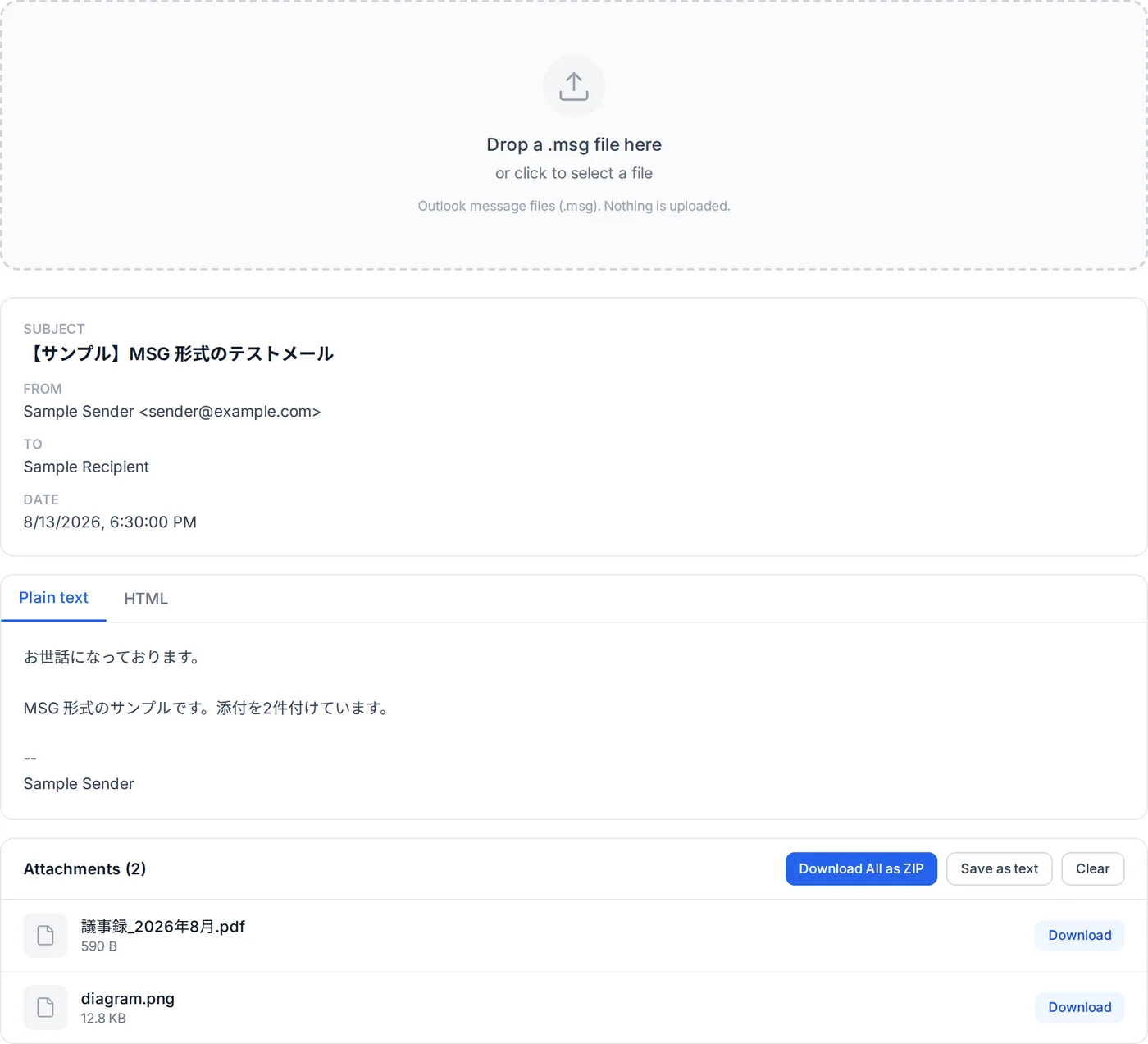
This site's viewers read the file inside your browser without sending it anywhere. They show the subject, sender, recipients, date and body, and save the attachments one by one or together as a ZIP. They do not convert between EML and MSG.
Saving as MSG? Pick Unicode
Classic Outlook's Save as type list has two MSG types, one with "Unicode" in its name and one without (in Microsoft's developer list, "Outlook Unicode message format" and "Outlook message format").
Microsoft's help describes Unicode as an encoding "that enables most of the written languages in the world to be represented by using a single character set", and says that if you share messages with people who use classic Outlook on computers that run in other languages, you can take advantage of it. A non-Unicode MSG stores all of its string properties, such as the subject and the plain-text body, in a code page for one particular language (Microsoft's specification [MS-OXMSG]). Which code page is left to information outside the string itself ([MS-OXCDATA]), so a reader that assumes a different one can show garbled text.
To save in Unicode every time, go to File > Options > Mail and, under Save messages, select Use Unicode Format (from the same Microsoft article).
Have a .msg file?
No Outlook needed: the MSG viewer on this site shows the subject, body and attachments. It reads Unicode MSG files and non-Unicode ones in Japanese and other languages.
Save attachments one at a time or all together as a ZIP.
Which to choose
- To hand to someone, or to read later in another app — EML if you can choose it. New Outlook and Outlook on the web open it without a Microsoft 365 subscription (MSG needs one), and Outlook for Mac opens it from 16.58 (MSG only from 16.108).
- You only have classic Outlook for Windows — EML is not offered, so save as MSG (Unicode). If the other person has no Outlook, point them to this site's MSG viewer.
- You want Outlook appointments or contacts as files too — MSG stores them in the same format. EML is a format for emails, so appointments and contacts do not fit in it. There are also the standard .ics (appointments) and .vcf (contacts) formats, which are in Microsoft's developer list of save formats too.
Frequently asked questions
Can I open a .msg file on a Mac?
Double-clicking a .msg does not open it in new Outlook.
About the author
Ren
Developer, OpenedFile
I build and maintain OpenedFile on my own. It started when a winmail.dat attachment landed in my inbox and nothing would open it — and every online converter I found wanted me to upload the file to their server first. So I wrote a TNEF parser from scratch instead, and every tool here has run entirely in the browser ever since.
More about OpenedFile