How to Convert VCF to CSV for Excel
Convert VCF (vCard) contacts to CSV and open them in Excel. Real conversions of sample files in the iPhone, Android and Google Contacts export formats, what the CSV keeps and drops, keeping the leading zeros on phone numbers, and turning a CSV back into a VCF.
A VCF (vCard) file stores contacts as blocks of text, one block per person, so opening it in Excel does not give you a table. To work with your contacts as rows and columns, convert the file to CSV.
For this guide, we wrote sample VCF files that mimic how an iPhone, an Android phone and Google Contacts export contacts, ran them through the OpenedFile VCF to CSV Converter, and printed the CSV that came out, unedited. Everything below — what goes into the CSV, what is left out, and where Excel trips you up — is explained against that real output.
Converting in three steps
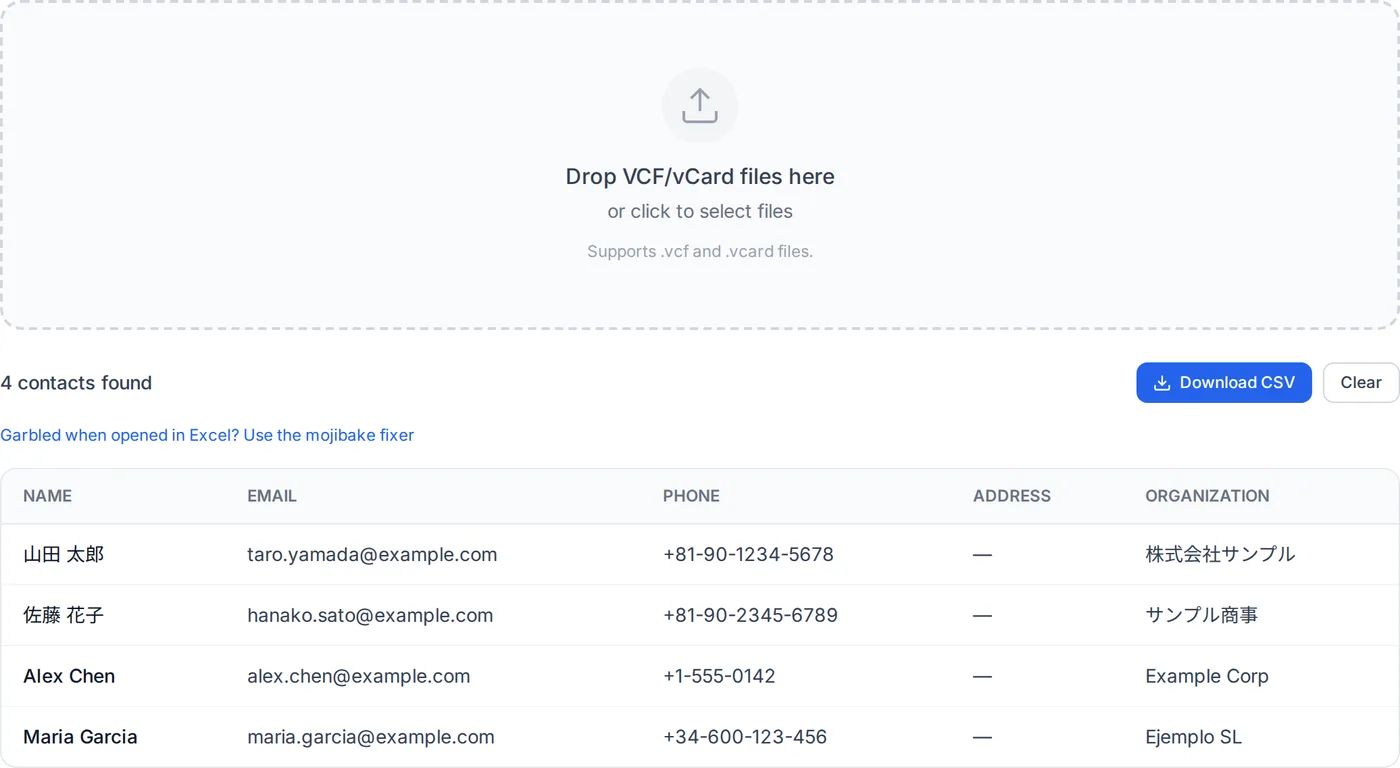
- Add the file — Open the VCF to CSV Converter and drag your
.vcffile onto the page, or click to choose it. A file with one contact and a single file holding your whole address book both work. The tool reads one file at a time. - Check what was read — The contacts the tool found are listed. The “N contacts found” line above the list is the number of rows your CSV will have, not counting the header row.
- Download the CSV — Press “Download CSV” and
contacts.csvis saved.
Reading the file and building the CSV both happen inside your browser. Your contacts are not sent to a server.
What a real conversion looks like
Every app writes vCards slightly differently. The three samples below imitate each app's export format (the people are fictional).
Exported from an iPhone
This is vCard 3.0. Email and address lines may carry a prefix such as item1.. The second contact has no name and no email address, only a phone number.
BEGIN:VCARD
VERSION:3.0
PRODID:-//Apple Inc.//iPhone OS 18.0//EN
N:Carter;Emily;;;
FN:Emily Carter
ORG:Sample Trading;Sales;
TEL;type=CELL;type=VOICE;type=pref:(555) 010-2345
TEL;type=WORK;type=VOICE:+1 555 010 6789
item1.EMAIL;type=INTERNET;type=pref:emily@example.com
item1.X-ABLabel:Work
item2.ADR;type=HOME;type=pref:;;12 Example St;Springfield;IL;62701;United States
item2.X-ABADR:us
BDAY:1990-04-01
NOTE:Notes do not reach the CSV
END:VCARD
BEGIN:VCARD
VERSION:3.0
TEL;type=CELL:555-010-0000
END:VCARD
Exported from Android's built-in Contacts app
This is vCard 2.1. Every letter of the name, accented or not, is written in an encoding called QUOTED-PRINTABLE (=4A is “J” and =C3=A9 is “é”), which is hard to read in a text editor.
BEGIN:VCARD
VERSION:2.1
N;CHARSET=UTF-8;ENCODING=QUOTED-PRINTABLE:=4D=61=72=74=C3=AD=6E=65=7A;=4A=6F=73=C3=A9;;;
FN;CHARSET=UTF-8;ENCODING=QUOTED-PRINTABLE:=4A=6F=73=C3=A9=20=4D=61=72=74=C3=AD=6E=65=7A
TEL;CELL:07700900456
EMAIL;HOME:jose@example.org
END:VCARD
Exported from Google Contacts
BEGIN:VCARD
VERSION:3.0
FN:Daniel Lee
N:Lee;Daniel;;;
EMAIL;TYPE=INTERNET;TYPE=WORK:daniel@example.com
EMAIL;TYPE=INTERNET;TYPE=HOME:dan.lee@example.net
TEL;TYPE=CELL:+44 7700 900123
ADR;TYPE=WORK:;;1 Sample Road;London;;SW1A 1AA;United Kingdom
ORG:Sample Works
CATEGORIES:myContacts
END:VCARD
The CSV that came out
With all three combined into one file, the tool showed “3 contacts found” and downloaded this contacts.csv (printed exactly as it came out):
Name,Email,Phone,Address,Organization
Emily Carter,emily@example.com,(555) 010-2345; +1 555 010 6789,12 Example St Springfield IL 62701 United States,Sample Trading Sales
José Martínez,jose@example.org,07700900456,,
Daniel Lee,daniel@example.com; dan.lee@example.net,+44 7700 900123,1 Sample Road London SW1A 1AA United Kingdom,Sample Works
Laid out as a table, the same CSV looks like this:
| Name | Phone | Address | Organization | |
|---|---|---|---|---|
| Emily Carter | emily@example.com | (555) 010-2345; +1 555 010 6789 | 12 Example St Springfield IL 62701 United States | Sample Trading Sales |
| José Martínez | jose@example.org | 07700900456 | ||
| Daniel Lee | daniel@example.com; dan.lee@example.net | +44 7700 900123 | 1 Sample Road London SW1A 1AA United Kingdom | Sample Works |
What this shows:
- The VCF holds four people, but the CSV has three rows. The phone-only contact has neither a name nor an email address, so it is left out.
- Android's
=4A=6F=73=C3=A9has been turned back into “José”. - When someone has two phone numbers or two email addresses, both go into one cell, joined by “
;” (a semicolon and a space). - The address is one cell, in the order street, city, region, postal code, country. The empty region in the UK address is simply skipped.
- José's phone number is written as digits only, with no spaces or dashes. That is the form that loses its leading zero in Excel (see below).
- The birthday, the note, labels such as “Work” and the group (
CATEGORIES) are not in the CSV.
What the CSV keeps and what it drops
The tool writes five columns. This is where each one comes from in the vCard:
| CSV column | vCard property | How it is built |
|---|---|---|
| Name | FN (or N) | If there is no FN, the parts of N joined with spaces, family name first (“Carter Emily”) |
EMAIL | Several are joined with “; ” | |
| Phone | TEL | Several are joined with “; ”. The type (mobile, work, home) is not kept |
| Address | ADR | The non-empty parts joined with spaces, in the order PO box, extended address (apartment, building), street, city, region, postal code, country. Several addresses are joined with “; ” |
| Organization | ORG | Company and department joined with a space |
Nothing else goes into the CSV: no photos, notes, birthdays, job titles, phonetic names, websites or groups. If you need those, importing the VCF itself into your contacts app or Google Contacts is the safer route.
A contact with neither a name (FN or N) nor an email address does not become a row. If contacts saved with only a phone number are missing from the CSV, this is why.
vCards from older phones that declare their character set, such as CHARSET=SHIFT_JIS or CHARSET=GBK, are read in that character set. A vCard written in such a character set without declaring it is read as UTF-8, so names and other text come out garbled. Whatever the source file uses, the CSV is written in UTF-8.
Opening the CSV in Excel (encoding and leading zeros)
Garbled characters are unlikely
The CSV is UTF-8 with a BOM (byte order mark) at the start. Microsoft's support article says “You can open a CSV file encoded with UTF-8 normally if it was saved with BOM”, so double-clicking the file normally shows names such as “José” correctly.
If the characters still come out garbled, import the file instead of double-clicking it. In Excel, go to Data > From Text/CSV, choose the CSV, set File Origin in the preview to “65001: Unicode (UTF-8)”, then press Load. This is the Power Query route Microsoft's article gives for UTF-8 files without a BOM. Why a CSV Opens Garbled in Excel, and Three Ways to Fix It goes through it in more detail.
Phone numbers lose their leading zero
A cell that holds a single phone number written only in digits, like José's 07700900456 in the sample, is read by Excel as a number, and the leading zero is dropped. A number containing dashes, or a cell where two numbers are joined by “; ”, is not read as a number, so its leading zero stays. Whether a number has dashes or spaces depends on how it was saved in the original contacts app; the tool does not change it. There are two ways to keep the zero:
- Microsoft 365 and Excel 2024 — Go to File > Options > Data and, under Automatic Data Conversion, clear “Remove leading zeros and convert to number” before opening the CSV (on a Mac: Excel > Preferences > Edit). According to Microsoft, this conversion also runs when you open a .csv file, and it is on by default.
- Excel 2016 and later (on a Mac: Microsoft 365 and Excel 2024) — Use Data > From Text/CSV and choose the file. In the preview, set Data Type Detection to “Do not detect data types” and press Load: every column comes in as text. To make only the phone column text, press Transform Data instead, select the phone column in the Power Query editor and set Data Type to Text (if a Change Column Type prompt appears, choose Replace Current). Then press Close & Load.
If you double-clicked the file without changing that setting, the zeros were dropped the moment it opened. Changing the cell format to text afterwards will not bring them back, so close the file without saving and open it again using one of the methods above.
Opening the CSV in Google Sheets
- Create a new spreadsheet in Google Sheets.
- Go to File > Import and choose
contacts.csv. - Set Separator character to Comma (or Detect automatically) and click Import.
UTF-8 text shows up correctly. After importing, check that phone numbers written only in digits still have their leading zero.
Getting a VCF of your iPhone contacts
You can export your contacts to a VCF from the Contacts app on the iPhone itself. These are the steps in Apple's iPhone User Guide:
- Open the Contacts app and tap the Lists button.
- Touch and hold the list you want to export.
- Tap Export, select the fields you want to include, then tap Done.
- Choose a way to send or save the exported contact cards, such as Messages or Mail.
If you would rather work on a computer, you can use iCloud.com in a browser. According to Apple, Contacts on iCloud.com gives you the contacts you store in iCloud, and you need to be on a tablet or computer to use it. The steps on Apple's support page are:
- Go to icloud.com/contacts and sign in to your Apple Account.
- Select the Actions button at the top of the list, then choose Select All Contacts. (For only some contacts, hold Command on a Mac or Control on Windows and click each one.)
- Select the Share button on the right, then choose Export vCard.
On iCloud.com, selecting several contacts exports them all in a single vCard file. Whichever method you use, drop the exported file into the converter to get your CSV.
Turning a CSV back into a VCF
This site's tool only converts from VCF to CSV. To go the other way, you can pass the CSV through Google Contacts:
- Rename the first row (the headers) to names Google Contacts understands. The sample template in Google's help uses, for example,
First NameandLast Namefor the given and family names,Email 1 - Valuefor the email address,Phone 1 - Valuefor the phone number andOrganization Namefor the company. Split the name into those two columns; if you put the whole name inFirst Name, all of it becomes the first name. Put a second email address or phone number in an added column such asEmail 2 - Value, and split the address into its own columns such asAddress 1 - StreetandAddress 1 - City(this tool joins the address parts with spaces, so you have to split them by hand). If you edit the file in Excel, open it with one of the methods under “Phone numbers lose their leading zero” so the zeros stay, then save it as “CSV UTF-8 (Comma delimited)”. Opening it by double-click without first turning off that Automatic Data Conversion option, then saving, puts the numbers into Google without their zeros. - On a computer, open Google Contacts. On the left, click Import > Select file, choose the CSV and click Import.
- Check the boxes next to the imported contacts, click More actions at the top right, choose Export and pick vCard as the format.
Google's help explains that the headers decide where each piece of information is saved, so do not delete them, and that if a detail seems to be missing after the import, you should check the notes section of that contact. If you have more than 3,000 contacts, split them into several CSV files before importing.
Going back from a CSV made by this tool will not restore what the CSV never had: photos, notes, birthdays and phone types stay lost. If you still have the original VCF, import that instead — Google Contacts accepts vCard files directly.
Summary
- Drop your file into the VCF to CSV Converter and press “Download CSV” to get
contacts.csv. Nothing leaves your browser. - The CSV has five columns: name, email, phone, address and organization. Multiple values share one cell, joined by “
;”, and photos, notes and the like are not included. - Because it is UTF-8 with a BOM, Excel normally shows the text correctly. The thing to watch is the leading zero on phone numbers written only in digits.
Frequently asked questions
The conversion produced no contacts at all.
BEGIN:VCARD. If it is not, the export from the contacts app probably failed part-way, or the file is another format entirely. Even a real vCard shows nothing if none of its contacts has a name or an email address; the tool then says “No contacts with a name or an email address were found in this file.” Why does the CSV have fewer rows than the VCF has contacts?
About the author
Ren
Developer, OpenedFile
I build and maintain OpenedFile on my own. It started when a winmail.dat attachment landed in my inbox and nothing would open it — and every online converter I found wanted me to upload the file to their server first. So I wrote a TNEF parser from scratch instead, and every tool here has run entirely in the browser ever since.
More about OpenedFile