How to Transfer Contacts Between Phones
How to move contacts between iPhone and Android (and between phones of the same kind), using Apple's and Google's own instructions: during the new phone's setup (Move to iOS, Android Switch), by syncing a Google Account or iCloud, or with a VCF file.
How you move contacts between an iPhone and an Android phone depends on when you do it (moving between two Androids or two iPhones is covered further down). While the new phone is being set up, the transfer tools Apple and Google each provide are the least work. Once setup is done, you sync through a Google Account or move a VCF file (a file holding your contacts).
The short answer
- Android → new iPhone: Move to iOS, during the iPhone's setup
- iPhone → new Android: choose iPhone or iPad during the Android's setup
- Same platform: sync through a Google Account or iCloud
- Setup already done, or only some contacts: sync a Google Account, or use a VCF file
From Android to iPhone
During the new iPhone's setup: Move to iOS
Install Apple's Move to iOS app on the Android phone. According to Apple's support article, it transfers contacts as well as message history, photos and videos, calendars, mail accounts and more.
- Turn on Wi-Fi on the Android phone, and plug both phones into power.
- During the iPhone's setup, on the Quick Start screen, tap Set Up Without Another [Apple] Device and follow the onscreen instructions.
- On the Transfer Your Apps & Data screen, tap From Android, then Transfer with App.
- Open the Move to iOS app on the Android phone and enter the code shown on the iPhone.
- Join the temporary Wi-Fi network the iPhone creates, select what to transfer (contacts and so on) and tap Continue.
- Leave both devices alone until the loading bar on the iPhone finishes. If you use another app or get a phone call on the Android phone before the transfer finishes, your content won't transfer.
If the iPhone is already set up, Apple says you need to erase it and start over to use this. If you would rather not erase it, use one of the methods below.
iPhone already set up: sync the contacts in your Google Account
If the Android contacts are saved in a Google Account, adding that account to the iPhone is enough for them to appear (from Apple's iPhone User Guide):
- Open the Settings app on the iPhone and tap Apps, then Contacts.
- Tap Contacts Accounts, then Add Account.
- Choose Google, sign in, then turn on Contacts.
Contacts kept only on the Android phone itself, rather than in the Google Account, do not sync (see the FAQ below). Move those with a VCF file.
From iPhone to Android
During the new Android's setup: choose iPhone or iPad
According to Google's help, when the new Android phone asks during setup whether to copy data from another device, select iPhone or iPad. For the classic wireless transfer, install the Android Switch app on the iPhone from the App Store. Contacts are on the list of things that transfer, wirelessly or by cable.
- To transfer wirelessly with the Android Switch app, the iPhone must be on iOS 15 or later.
- You must turn off iMessage on the iPhone.
- If an organisation such as a business or school manages the iPhone, you may not be able to transfer all data.
Android already set up
According to Google, on Android 17 devices and newer you can still copy your data after skipping it during setup, at Settings > Accounts and backup. Data transfer after setup is available on updated Pixel 9 devices and newer, the Samsung Galaxy Z Flip 8 and Z Fold 8, and select other devices. On other phones, export the iPhone's contacts to a VCF file and import it on the Android phone (next section).
Android to Android, iPhone to iPhone
- Android to Android — If the contacts are saved in a Google Account, signing in to the same Google Account on the new phone syncs them. According to Google, some apps keep contacts in device storage only, so before you switch, turn on saving device and SIM contacts to your Google Account under Google Contacts sync in the settings (see the FAQ below).
- iPhone to iPhone — Sign in to the same Apple Account on both iPhones, then on each go to Settings > [your name] > iCloud, tap See All next to Saved to iCloud and turn on Contacts (Apple's iPhone User Guide).
Either way, moving a VCF file as described next works too.
With a VCF file (works after setup too)
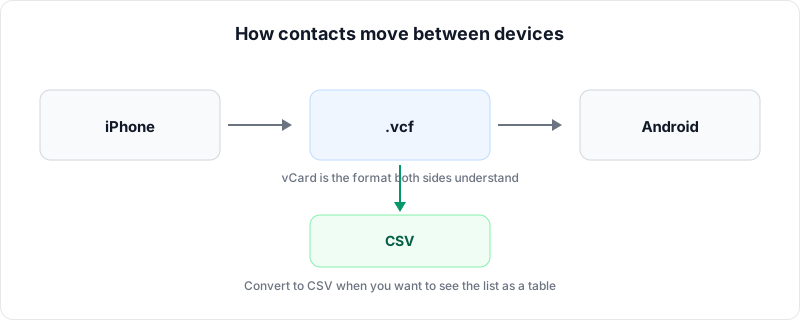
A VCF (vCard) file can hold many contacts at once, and both iPhone and Android can export and import it. Hand it to the new phone by email attachment or through cloud storage.
Export
- iPhone — In the Contacts app, tap the Lists button, touch and hold the list you want to export (for everyone, a list that holds all your contacts) and tap Export. Select the fields to include, tap Done, then choose a way to send or save the contact cards, such as Messages or Mail (Apple's iPhone User Guide). On a computer, in Contacts on iCloud.com, use the button at the top of the list to choose Select All Contacts, then choose Export vCard.
- Android — In Google's Contacts app, tap Fix & manage at the bottom, then Export to file, choose the accounts to export from and tap Export to .VCF file (Google's help). A phone maker's own contacts app has different screens. On a computer, in Google Contacts, check the box next to any contact, choose Selection Actions > All at the top left, then More actions > Export at the top right, and choose vCard as the format.
Import
- iPhone — Tap the .vcf attachment in an email or message (Apple's iPhone User Guide). On a computer, choose Import Contact in Contacts on iCloud.com and select the vCard. According to Apple, a vCard with several people in it becomes a separate entry for each.
- Android — In Google's Contacts app, tap Organize at the bottom, then Import from file, pick the account to save to and select the VCF file (Google's help). On a computer, Import > Select file on the left of Google Contacts does the same.
When exporting on an iPhone, you choose which fields to include. Leave selected the fields you want to bring across.
Check the file before importing
Whether everyone made it into the exported .vcf can be checked with the VCF to CSV converter on this site. Drop the file in and the names, email addresses, phone numbers and so on appear as a list. The file is not sent to a server; it is read inside your browser.
Note that its count leaves out contacts with neither a name nor an email address (phone-number-only entries, for example).
Sources: Apple's "Move from Android to iPhone or iPad", "Export contacts on iPhone", "Import contacts on iPhone", "Add or remove accounts in Contacts on iPhone", "Import, export, or print contacts on iCloud.com" and "Sync contacts across devices on iPhone", and Google's "Copy apps & data from an iPhone or iPad to a new Android device", "Export, back up, or restore contacts", "Import your contacts into Google Contacts" and "Back up & sync device & SIM contacts".
Frequently asked questions
A .vcf exported from Android shows things like =C3=A9 in a text editor.
Only some of my contacts came across.
About the author
Ren
Developer, OpenedFile
I build and maintain OpenedFile on my own. It started when a winmail.dat attachment landed in my inbox and nothing would open it — and every online converter I found wanted me to upload the file to their server first. So I wrote a TNEF parser from scratch instead, and every tool here has run entirely in the browser ever since.
More about OpenedFile